Add Mixamo Animations to a Rigged Character
Add Idle, Walk and Jog loops to a rigged character, or retarget your own Mixamo and Unreal Mannequin FBX or glTF animations, then fix arm clipping per bone.
A rig with no animation is only half a character. This page adds motion: the three ready-made loops that ship with Forge, your own Mixamo or Unreal Mannequin files, and per-bone fixes for when a clip does not quite fit your character. It is one card in Free Auto Rig for Game Characters, and it assumes the character already went through Auto Rig.
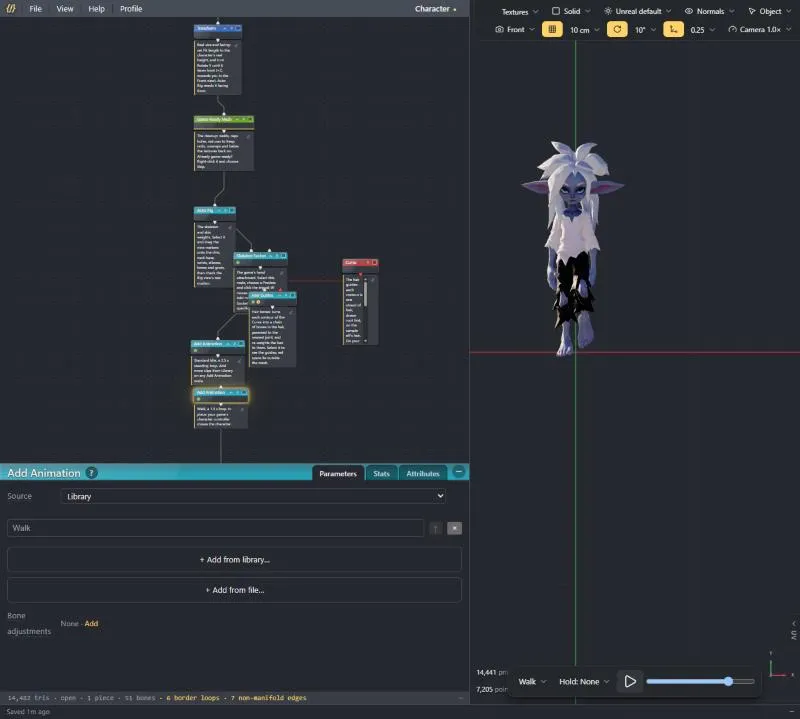
The bundled clips
Add an Add Animation node after Auto Rig. Its default source is the Library, which holds three standard clips:
| Clip | What it is |
|---|---|
| Idle | Standing relaxed, breathing and shifting weight, arms hanging. A 2.5 second loop. |
| Walk | A relaxed walk cycle with the arms swinging. A 1.3 second loop. |
| Jog | A forward jog cycle. A 0.9 second loop. |
Every clip is a seamless loop and plays in place: Walk and Jog bob up and down and sway with each step, but the character never travels. That is what most game character controllers want, since the controller moves the character and picks the clip that fits its speed. The hip movement is scaled to your character’s hip height, so a short character and a tall one both keep their feet on the ground.
The clips come from Quaternius’ Universal Animation Library under CC0, so the exported file is yours to ship in a commercial game with no attribution.
To build a move set, use + Add from library and select several clips on one node, or chain one Add Animation per clip: Auto Rig, then Idle, then Walk, then Jog, then Export.
Your own Mixamo or Mannequin animations
If you already have animations, for example ones downloaded from Mixamo for another project, use + Add from file (or set Source to From file) and drop in the files. Several at once works, and so does a folder.
- Formats: binary FBX 7.x, .glb or .gltf. Export ASCII FBX as binary first.
- Forge detects Mixamo skeletons (
mixamorig:Hips,mixamorig:LeftArmand so on) and UE4 and UE5 Mannequin skeletons (pelvis,spine_01,upperarm_l) by their joint names. - It retargets each clip onto your character as it cooks: every bone takes the direction the file’s bone has, even when the file’s character stands in a T-pose and yours in an A-pose, and the hips move as far as your character’s hip height allows. Z-up files and centimetre units are handled.
- In place is on by default, removing forward travel the way the bundled clips do. Turn it off on a row to keep the clip’s root travel.
Each clip is named after its animation. Mixamo names every take mixamo.com, so those clips take
the file’s name instead: Wave.fbx becomes a clip called Wave. When a clip looks right on your
character, Save to library keeps it for every other character you rig.
Your files never leave the browser. Their licence (Mixamo’s terms, an asset store’s) stays between you and wherever they came from.
Watch a clip before you export
Display the Add Animation node and switch the viewport to the Rig view. The Motion picker at the bottom lists the test motion and every clip the rig carries; pick one and press play, or drag the scrub bar to stop on a frame. The viewport plays the clip from exactly the data Export writes, so what you see is what your engine gets.
Fix a clip that does not quite fit
A clip retargeted onto a stockier or slimmer character can still be a little off: an arm cutting into a wide torso, a head tipped too far, hips a touch high. Bone adjustments fixes that on the node. Click Add, pick the Bone, and set its Turn in degrees.
Each adjustment turns one bone and everything hanging from it by the same amount at every frame, so
a loop stays a loop. Turning LeftArm turns the whole arm, hand included. On an Auto Rig skeleton
a negative X turn takes an arm out from the body and a positive one brings it in, so about -8 on
both arms clears a wide torso. Set Clip to All clips for a fix that suits the character
everywhere, or to one clip for that clip’s own problem. Only the Hips can also move, in
centimetres, which shifts the whole body.
Keep it at the end of the chain
Add Animation needs a rigged mesh, so Auto Rig comes before it. A node that reshapes the mesh after it drops the rig and every clip, so keep animation between Auto Rig and Export.
Next, give long hair its own motion with baked hair physics, or skip straight to importing into Unreal.
Frequently asked questions
- Can I use my own Mixamo animations?
- Yes. Set the Add Animation source to From file and drop in Mixamo animation files as binary FBX, .glb or .gltf. Forge detects the Mixamo skeleton by its joint names and retargets each clip onto your character, even when the file's character stands in a T-pose and yours in an A-pose.
- Does it work with Unreal Mannequin animations?
- Yes. Forge detects UE4 and UE5 Mannequin skeletons by name (pelvis, spine_01, upperarm_l and so on). UE5's extra spine and neck joints fold into the character's chain, and twist and IK helper bones are ignored.
- Are the bundled animations free to use commercially?
- Yes. Idle, Walk and Jog are made from Quaternius' Universal Animation Library, released under CC0 (public domain), and they ship inside Forge, so the exported file is yours to use however you like.
- Do the animations have root motion?
- The bundled clips play in place: Walk and Jog bob and sway but never move forward, so your character controller moves the character. Imported clips are made in place too by default; turn off In place on a row to keep the clip's forward travel.
- How do I fix arms clipping into a wide torso?
- Use Bone adjustments on the Add Animation node. Add one for the arm bone and turn it a few degrees about X; the turn applies at every frame, so the loop stays a loop. Apply it to all clips or to one clip only.